
The Unified Feedback room gives identified reporters one place to access and manage their reports.
After signing in with a verified email address or phone number, you can view reports linked to your Reporter profile, check their status, and open a specific report to continue communication.
How to create Unified Feedback room?
Access to the Reporter Cabinet starts with verifying the email address or phone number linked to your Reporter profile.
If you need more information about choosing a login method, receiving a verification code, or completing verification, see our "How to log in to the Feedback room using email or phone" article.
Before you begin
To access the Unified Feedback room, you need:
an email address or phone number linked to your Reporter profile;
access to that email address or phone number to receive a verification code;
at least one report associated with the same verified contact details.
The available login methods depend on the reporting portal configuration.
How to log in to the Feedback room
1. Open the whistleblowing portal login page.
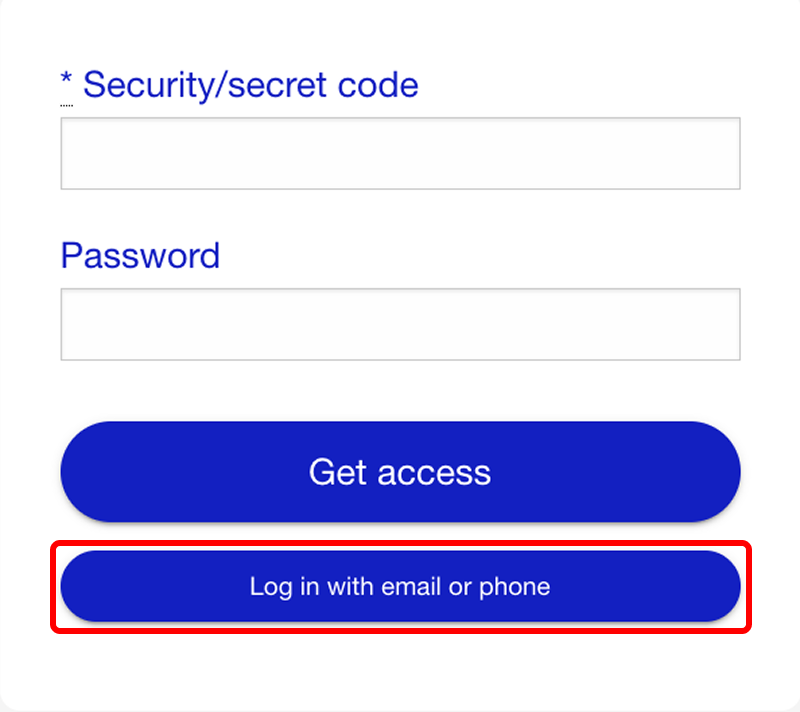
2. Select Log in with email or phone.
3. Enter the email address or phone number associated with your Reporter profile.
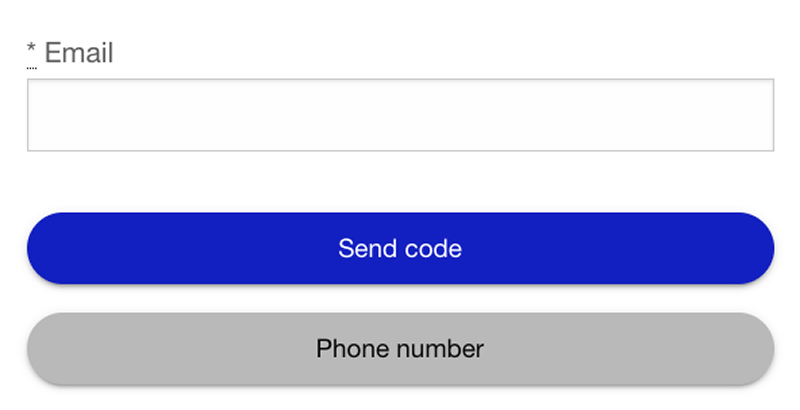
4. Request a verification code.
5. Enter the code you receive.
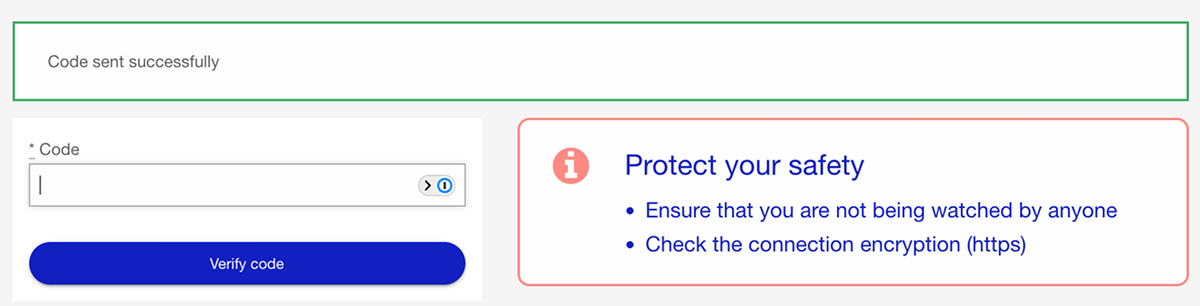
6. Complete the verification.
After successful verification, the Feedback room opens.
You do not need to remember a separate password for this login method.
Viewing your reports
After you log in, open My reports/concerns.
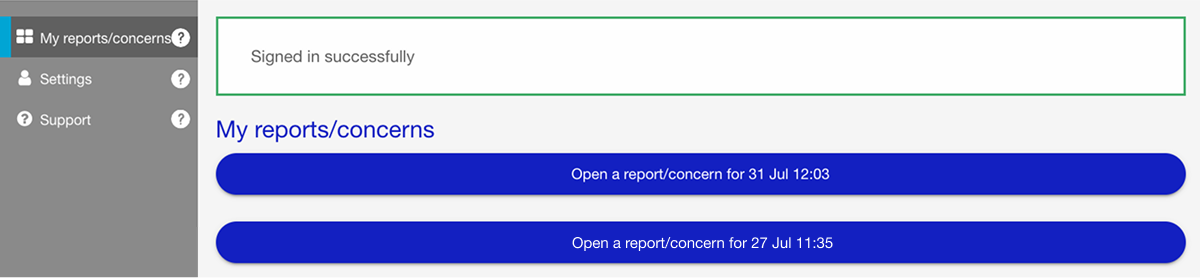
The section displays the reports associated with your Reporter profile, including active and previous submissions available to you.
For each report, you can open the corresponding record to review its current information.
How reports are linked to your Feedback room
Reports are connected through your verified Reporter profile.
When you submit another identified report using the same verified email address or phone number, the system can associate it with the same profile. The new report then becomes available together with your other linked reports in the Feedback room.
Each submission remains a separate report. The Feedback room simply provides one place from which you can access them.
Opening and switching between reports
To open a report:
Go to My reports/concerns.
Find the required report.
Click the report to open it.
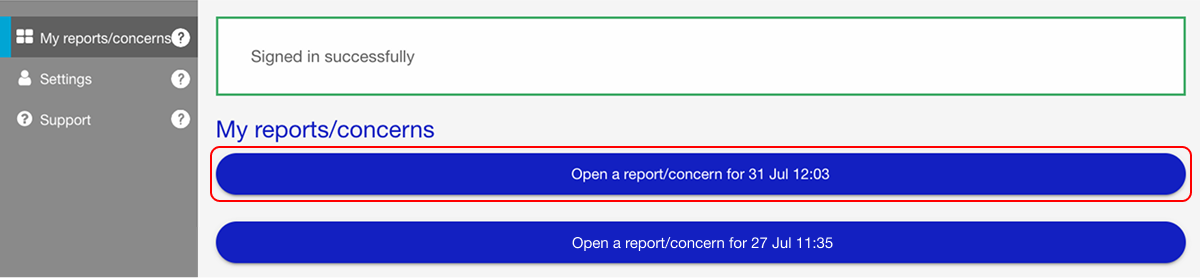
You can return to the list and select another report without signing in separately for each submission.
This is useful when you have several reports or ongoing conversations with investigators.
Troubleshooting
I cannot see one of my reports
Make sure that:
you signed in using the same email address or phone number used for that report;
the contact information was verified when the report was submitted;
the report is linked to the same Reporter profile.
A report submitted anonymously or using different contact details may not appear in the same Feedback room.
Notes
The Feedback room groups access to reports connected to the same verified Reporter profile.
Each submission remains an independent report.
Reports submitted anonymously without verified contact details are not connected to an identified Feedback room.
Available information and communication options depend on the organisation’s wistleblowing portal configuration.
Email- and phone-based access uses verification codes to confirm access to the Feedback room.